
Reverse Proxy Setup
A reverse proxy sits in front of Erugo and handles SSL/TLS encryption, allowing you to access your instance securely over HTTPS with a custom domain.
A reverse proxy provides HTTPS encryption, custom domain support, and can handle multiple services on the same server. It's essential for any public-facing deployment.
Before You Begin
You'll need:
- A domain name — Pointed to your server's IP address
- Erugo running — Following the Quick Start guide
- Ports 80 and 443 available — For HTTP and HTTPS traffic
Option 1: Nginx Proxy Manager
Nginx Proxy Manager (NPM) provides a web interface for managing reverse proxies with automatic SSL certificate generation. It's the easiest option for most users.
Install Nginx Proxy Manager
Create a new directory and docker-compose file for NPM:
mkdir nginx-proxy-manager && cd nginx-proxy-managerservices:
app:
image: 'jc21/nginx-proxy-manager:latest'
restart: unless-stopped
ports:
- '80:80'
- '443:443'
- '81:81'
volumes:
- ./data:/data
- ./letsencrypt:/etc/letsencrypt
networks:
- nginx_internal_network
networks:
nginx_internal_network:
name: nginx_internal_network
driver: bridgeStart Nginx Proxy Manager:
docker compose up -dAccess NPM Admin Panel
Open your browser and go to http://YOUR_SERVER_IP:81
Default login credentials:
- Email:
[email protected] - Password:
changeme
You'll be prompted to change these on first login. Use a strong password.
Update Erugo Configuration
Modify your Erugo docker-compose.yml to connect to the NPM network and remove the port mapping:
services:
  app:
    image: wardy784/erugo:latest
    restart: unless-stopped
    container_name: erugo
    volumes:
      - ./erugo-storage:/var/www/html/storage
    networks:
      - nginx_internal_network

networks:
  nginx_internal_network:
    external: true
Restart Erugo with the new configuration:
docker compose down && docker compose up -dAdd Proxy Host
In the NPM admin panel:
- Click Hosts → Proxy Hosts
- Click Add Proxy Host
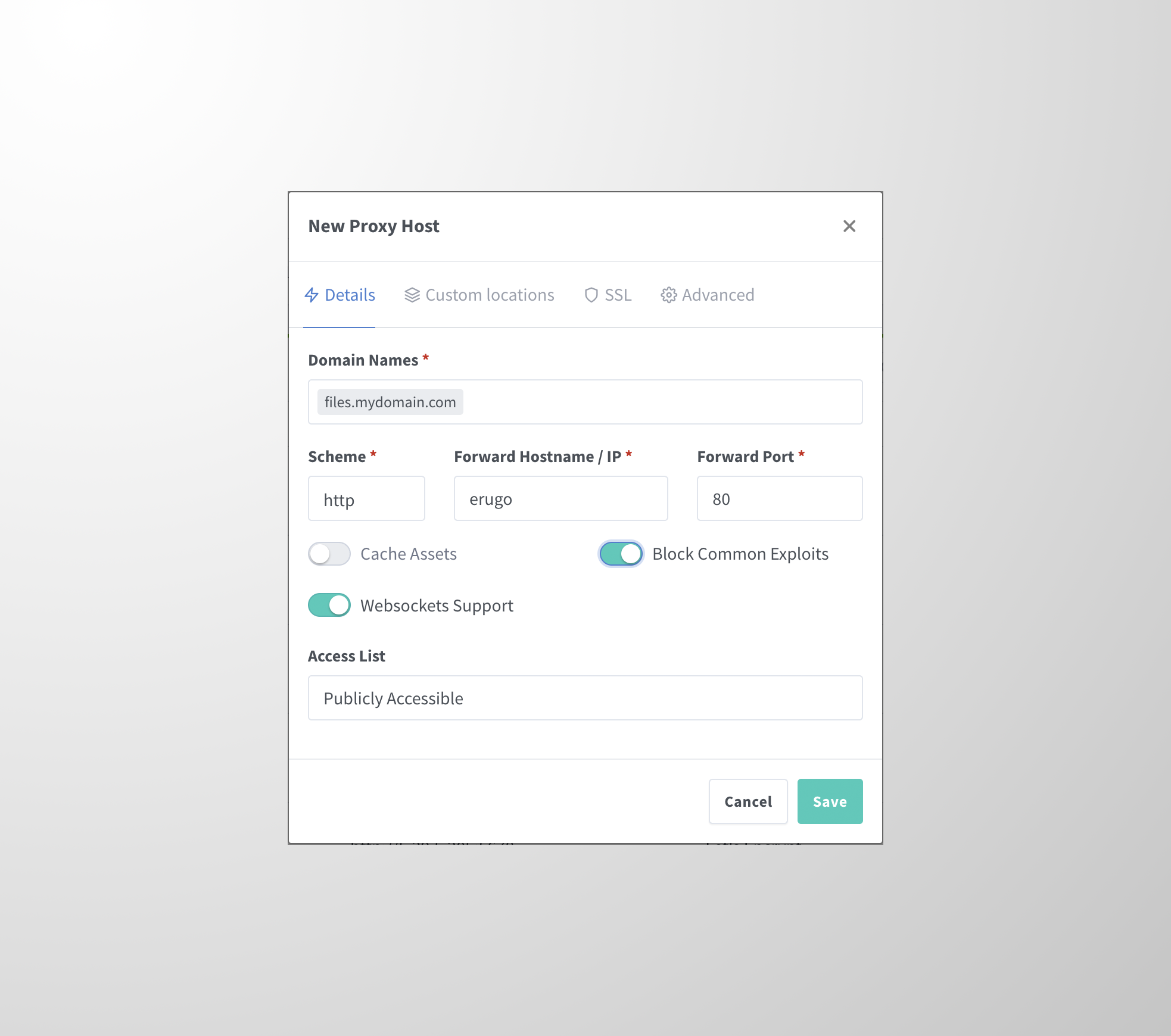
- Configure the Details tab:
| Setting | Value |
|---|---|
Domain Names | Your domain (e.g., files.example.com) |
Scheme | http |
Forward Hostname / IP | erugo |
Forward Port | 80 |
Websockets Support | Enabled |
Block Common Exploits | Enabled |
Configure SSL
- Click the SSL tab
- Select Request a new SSL Certificate
- Enable Force SSL
- Enable HTTP/2 Support
- Enter your email for Let's Encrypt notifications
- Agree to the Terms of Service
- Click Save

Your Erugo instance is now accessible at https://files.example.com (your domain).
SSL certificates will renew automatically.
Option 2: Caddy
Caddy is a modern web server with automatic HTTPS. It's simpler to configure than Nginx but doesn't have a web interface.
files.example.com {
    reverse_proxy erugo:80
}services:
caddy:
image: caddy:latest
restart: unless-stopped
ports:
- "80:80"
- "443:443"
volumes:
- ./Caddyfile:/etc/caddy/Caddyfile
- ./caddy_data:/data
- ./caddy_config:/config
networks:
- erugo_network
networks:
erugo_network:
external: trueCaddy automatically obtains and renews SSL certificates from Let's Encrypt.
Option 3: Traefik
Traefik is a powerful reverse proxy designed for containerized environments. It automatically discovers services and configures routing.
services:
  traefik:
    image: traefik:v3.0
    restart: unless-stopped
    command:
      - "--api.insecure=true"
      - "--providers.docker=true"
      - "--entrypoints.web.address=:80"
      - "--entrypoints.websecure.address=:443"
      - "--certificatesresolvers.letsencrypt.acme.httpchallenge=true"
      - "--certificatesresolvers.letsencrypt.acme.httpchallenge.entrypoint=web"
      - "[email protected]"
      - "--certificatesresolvers.letsencrypt.acme.storage=/letsencrypt/acme.json"
    ports:
      - "80:80"
      - "443:443"
    volumes:
      - /var/run/docker.sock:/var/run/docker.sock:ro
      - ./letsencrypt:/letsencrypt
    networks:
      - erugo_network

networks:
  erugo_network:
    external: true
Add labels to your Erugo service to enable Traefik routing:
services:
  app:
    image: wardy784/erugo:latest
    labels:
      - "traefik.enable=true"
      - "traefik.http.routers.erugo.rule=Host(`files.example.com`)"
      - "traefik.http.routers.erugo.entrypoints=websecure"
      - "traefik.http.routers.erugo.tls.certresolver=letsencrypt"
    networks:
      - erugo_network
Update Erugo Settings
After setting up your reverse proxy, update the Application URL in Erugo's settings:
- Log in to Erugo as an administrator
- Go to Settings → General
- Set Application URL to your domain (e.g.,
https://files.example.com) - Save changes
The Application URL is used for generating share links in emails. Make sure it's set correctly or recipients won't be able to access shared files.