
Email Configuration
Configure email to enable notifications for share events, password resets, and user invitations. Erugo uses SMTP to send emails through your preferred email provider.
Why Configure Email?
With email configured, Erugo can send:
- Share notifications — Alert recipients when files are shared with them
- Download notifications — Notify you when someone downloads your shared files
- Expiry warnings — Remind users before their shares expire
- Password reset emails — Allow users to reset forgotten passwords
- Account invitations — Invite new users to create accounts
SMTP Settings
Navigate to Settings → System Settings → SMTP / Email in the Erugo admin panel.
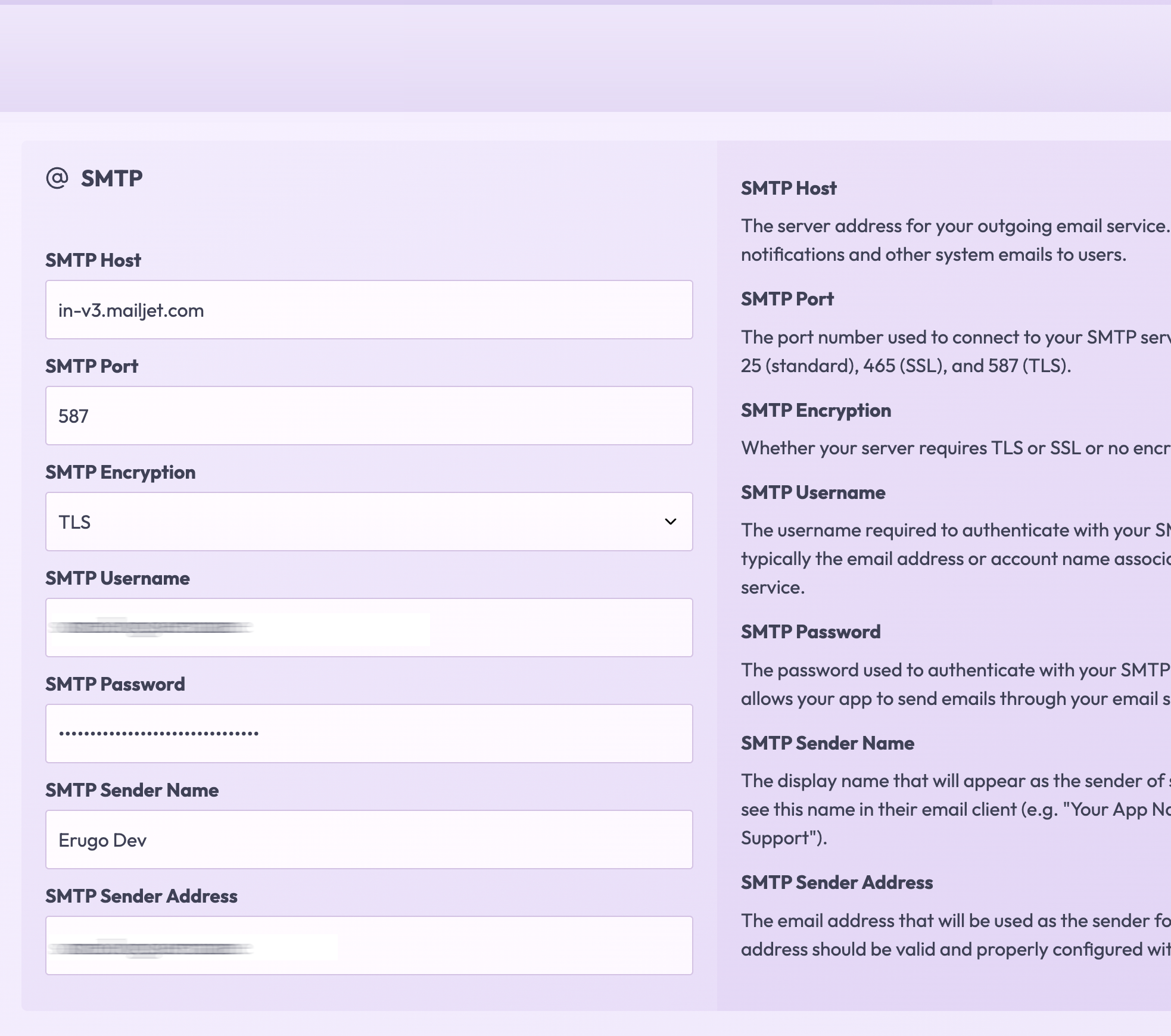
| Setting | Description |
|---|---|
SMTP Host | The server address for your email provider (e.g., smtp.gmail.com) |
SMTP Port | Usually 587 (TLS) or 465 (SSL) |
SMTP Username | Your email address or account username |
SMTP Password | Your email password or app-specific password |
Sender Name | Display name for outgoing emails (e.g., "Erugo File Sharing") |
Sender Address | The "from" email address for outgoing emails |
Provider Examples
Gmail
To use Gmail, you'll need to create an App Password. Regular passwords won't work due to Google's security policies.
- Go to your Google Account Security
- Enable 2-Step Verification if not already enabled
- Go to App passwords
- Select "Mail" and your device, then click Generate
- Use the generated 16-character password as your SMTP password
| Setting | Value |
|---|---|
SMTP Host | smtp.gmail.com |
SMTP Port | 587 |
SMTP Username | Your Gmail address |
SMTP Password | Your App Password (16 characters) |
Gmail has a daily sending limit of 500 emails for personal accounts. For higher volume, consider a transactional email service.
Microsoft 365 / Outlook
| Setting | Value |
|---|---|
SMTP Host | smtp.office365.com |
SMTP Port | 587 |
SMTP Username | Your Microsoft email address |
SMTP Password | Your Microsoft password or App Password |
Mailgun
Mailgun is a popular transactional email service with a generous free tier.
| Setting | Value |
|---|---|
SMTP Host | smtp.mailgun.org |
SMTP Port | 587 |
SMTP Username | Your Mailgun SMTP username |
SMTP Password | Your Mailgun SMTP password |
SendGrid
SendGrid offers 100 free emails per day on their free tier.
| Setting | Value |
|---|---|
SMTP Host | smtp.sendgrid.net |
SMTP Port | 587 |
SMTP Username | apikey |
SMTP Password | Your SendGrid API key |
Amazon SES
Amazon SES is cost-effective for high-volume sending.
| Setting | Value |
|---|---|
SMTP Host | email-smtp.{region}.amazonaws.com |
SMTP Port | 587 |
SMTP Username | Your SES SMTP username |
SMTP Password | Your SES SMTP password |
Email Notifications
After configuring SMTP, you can enable or disable specific notification types in Settings → System Settings → Notifications.
| Notification | Description |
|---|---|
Share Downloaded | Notify when someone downloads your shared files |
Share Expiry Warning | Warn before shares expire |
Share Expired | Notify when shares have expired |
Share Deletion Warning | Warn before files are permanently deleted |
Share Deleted | Notify when files are permanently deleted |
Testing Email
After saving your SMTP settings, test the configuration:
- Create a test share
- Enter your email as the recipient
- Check your inbox for the share notification
If you don't receive the test email, check your spam folder. You may need to configure SPF, DKIM, and DMARC records for your domain to improve deliverability.
Customizing Email Templates
Erugo allows you to customize the content of notification emails. Navigate to Settings → Email Templates to modify:
- Email subject lines
- Header content
- Message body
- Button text
See the Configuration Guide for detailed information about email template customization.