Customize Branding
Make Erugo your own with custom logos, themes, and backgrounds. Match your organization's brand or create a unique look for your file sharing platform.
Accessing Branding Settings
Log in as an administrator and click the cog icon in the bottom-right toolbar to access settings. Branding options are found under Branding & UI.
Logo
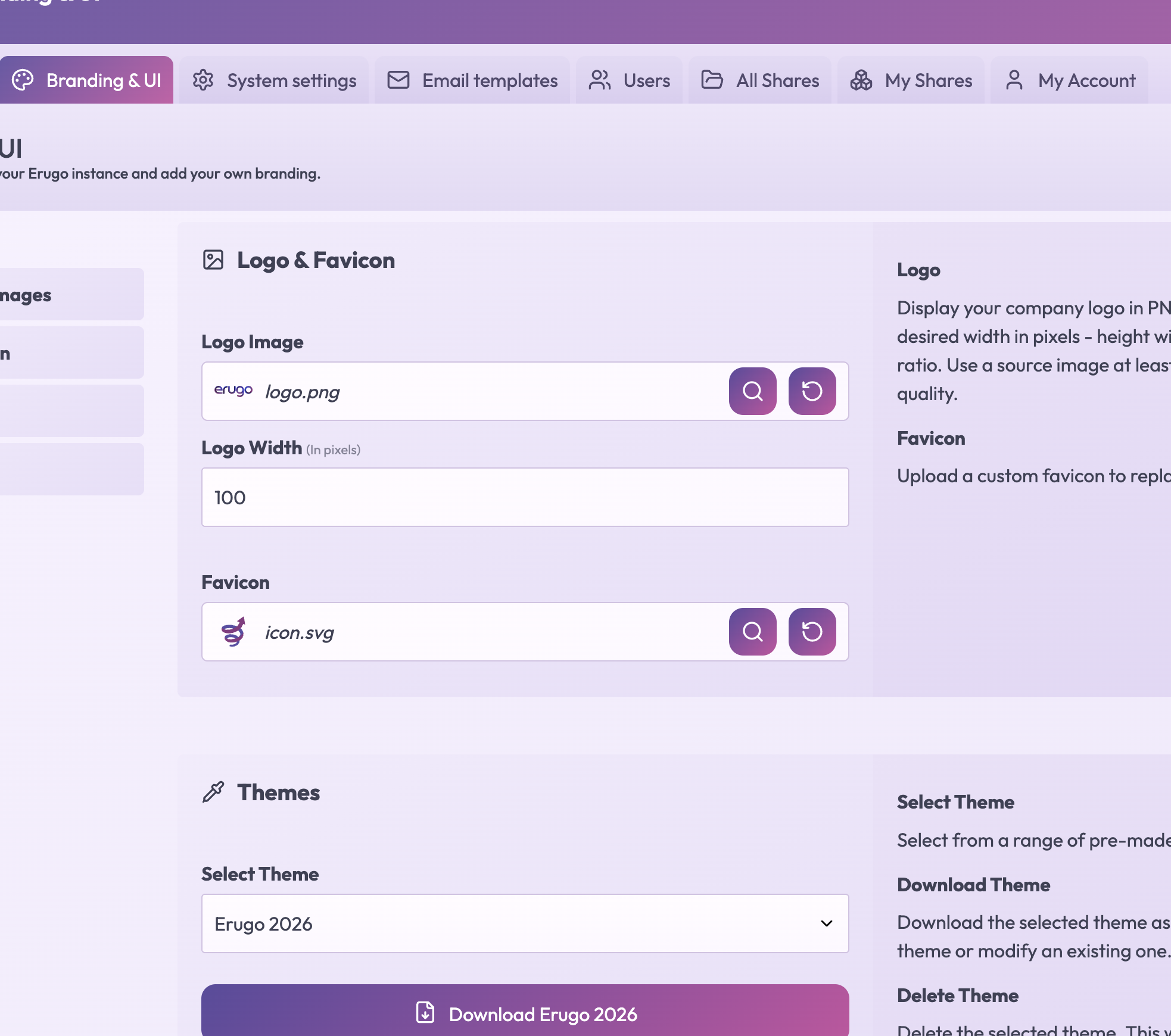
Display your company or organization logo in the top-left corner of the interface.
| Setting | Description |
|---|---|
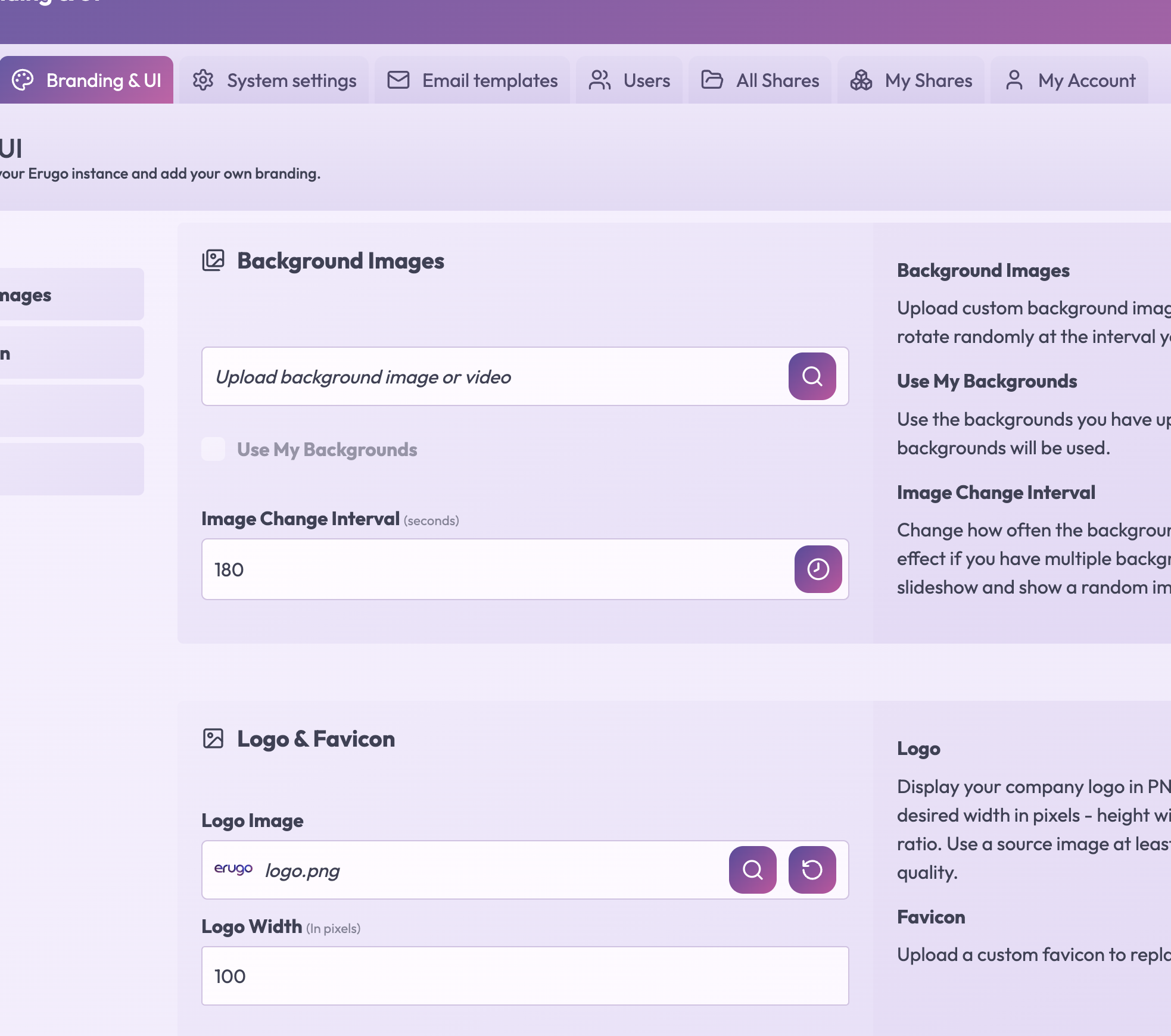
Logo Image | Upload a PNG image. For best results, use an image with a transparent background. |
Logo Width | Set the display width in pixels. Height adjusts automatically to maintain aspect ratio. |
Use a source image at least as wide as your display width for quality. A width of 100-150px works well for most logos.
Themes
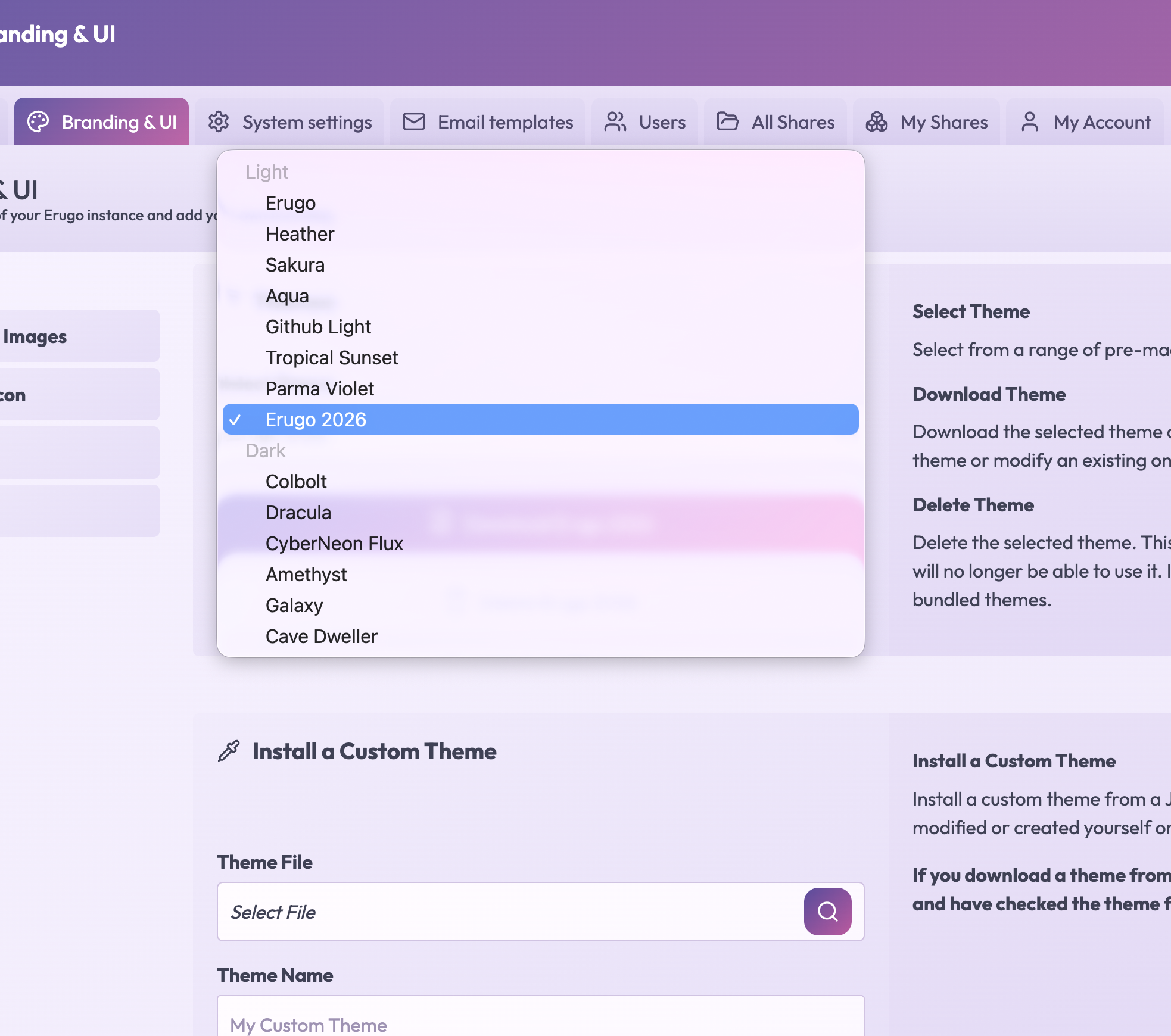
Erugo includes a variety of pre-made themes that control colors, fonts, and visual styling. You can also create and install custom themes.
Selecting a Theme
- Go to Settings → Branding & UI → Themes
- Choose from the available themes in the dropdown
- Preview changes immediately
- Click Save to apply permanently
Creating Custom Themes
You can create your own themes by modifying an existing theme file:
- Download an existing theme as a starting point
- Modify the JSON file to customize colors and styles
- Install your custom theme by uploading the JSON file
- Give your theme a unique name
Only install themes from sources you trust. Review theme files before installing to ensure they don't contain malicious code.
Deleting Themes
You can delete custom themes you've installed. Note that:
- Bundled themes cannot be deleted
- The currently active theme cannot be deleted
Background Images
Customize the background images displayed throughout Erugo. By default, Erugo uses images from Unsplash, but you can upload your own.
| Setting | Description |
|---|---|
Use My Backgrounds | When enabled, uses your uploaded images instead of Unsplash. You must upload at least one image first. |
Image Change Interval | How often the background randomly changes. Options: 3 min, 5 min, 1 hour, 2 hours, 1 day, or disabled. |
Uploading Backgrounds
Supported formats:
- Images: PNG, JPEG, WebP
- Videos: MP4, WebM
Video backgrounds loop automatically and are muted. Keep file sizes reasonable to ensure fast loading times.
Other UI Options
Application Name
Set the name displayed in title bars, dialogs, and throughout the interface. Find this in Settings → System Settings → General.
Login Message
Display a custom message on the login screen. Use for welcome messages, announcements, or important notifications.
Powered By Erugo
The "Powered by Erugo" text at the bottom of the page can be shown or hidden. Keeping it visible helps new users discover Erugo and supports the project.
| Setting | Location | Description |
|---|---|---|
Application Name | System Settings → General | Name shown in titles and dialogs |
Login Message | System Settings → General | Custom message on login screen |
Show Powered By | Branding & UI → Other | Toggle footer attribution |
Language Settings
Erugo supports multiple languages. Configure the default language and whether users can switch languages.
| Setting | Description |
|---|---|
Default Language | Primary interface language. Available: English, German, French, Italian, Dutch, Portuguese. |
Show Language Selector | When enabled, displays a language dropdown allowing users to switch languages. |
Best Practices
- Consistent branding — Use colors that match your logo and organization
- High-quality images — Use appropriately sized images for backgrounds and logos
- Test on mobile — Check how your branding looks on smaller screens
- Consider accessibility — Ensure sufficient contrast between text and backgrounds